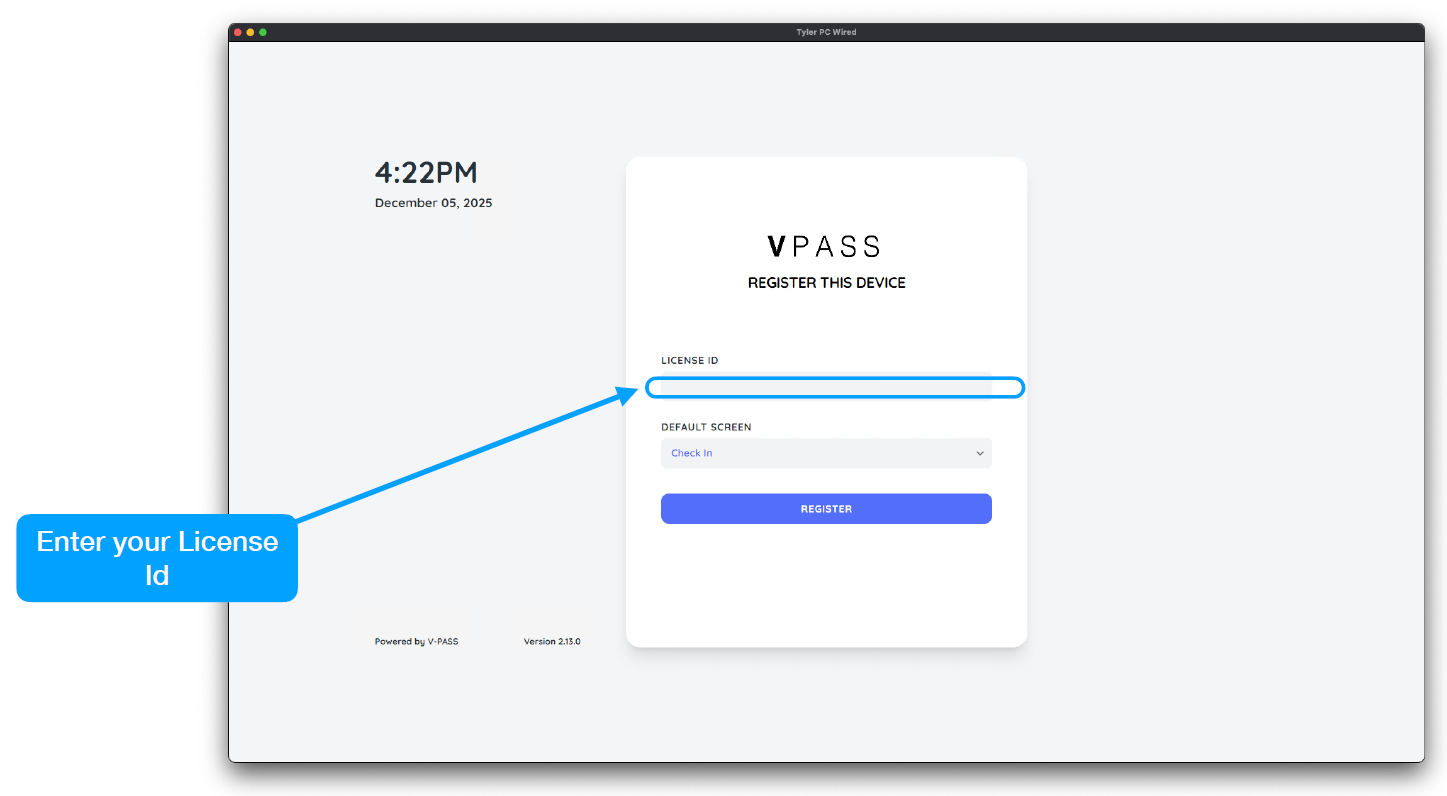
V-Pass Windows Desktop Installation Guide
For best results, please make sure you are running Windows 11 and are using a dedicated Windows login account on the machine that will be running the V-Pass desktop application. A minimum screen resolution of 1024 x 768 is required.
Make sure that your device is on a high-speed network connection. If the network has restrictions or firewall rules, ask your V-Pass customer success manager for a list of the necessary URLs and domains that will need to be whitelisted by your IT team for inbound and outbound communications to function correctly.
In order to access the V-Pass desktop application installer, you will need to work with your V-Pass customer success manager to obtain login credentials as a v-pass.com portal user. Once you are logged into v-pass.com as a portal user, please follow the steps below to download and install the V-Pass desktop application.
Step 1
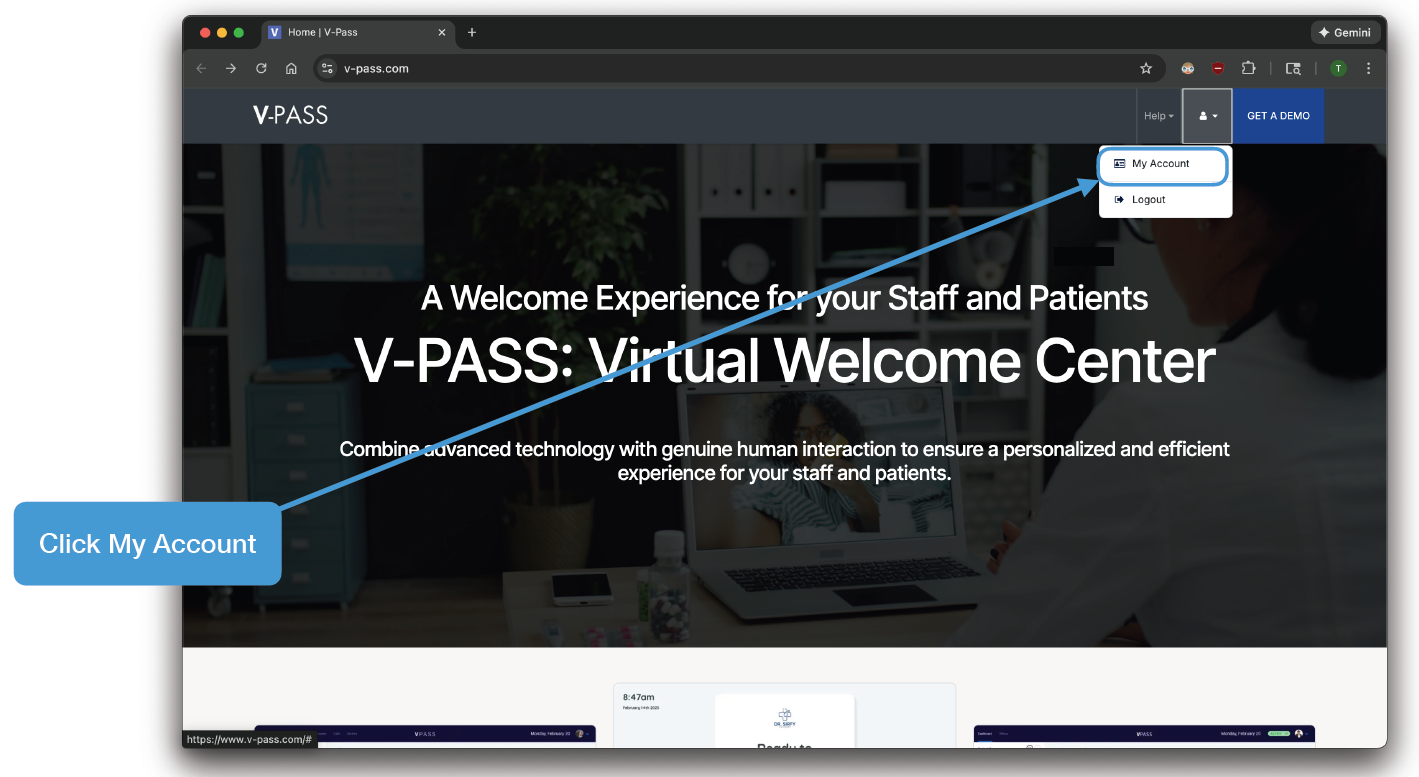
Step 2
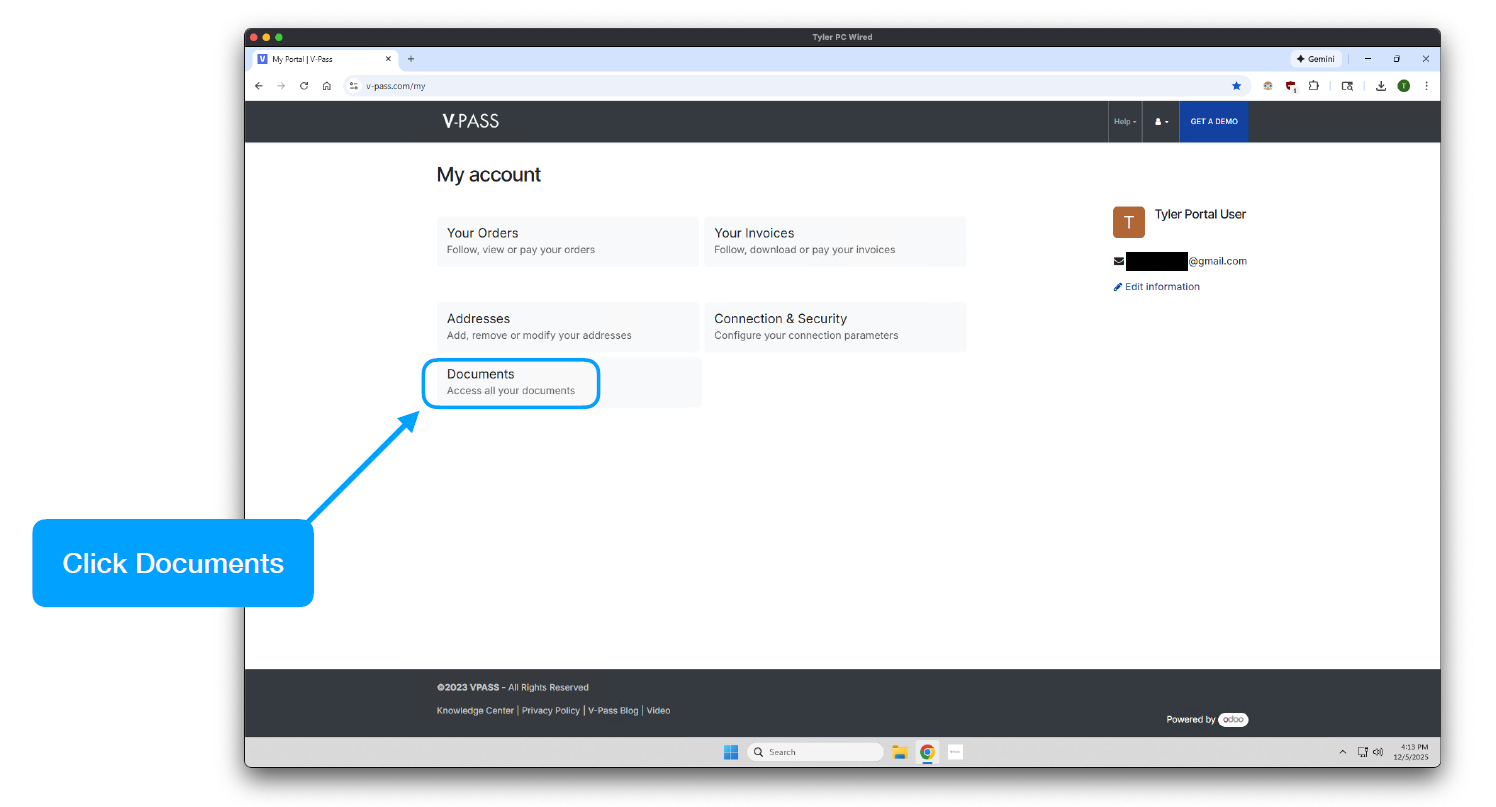
Step 3
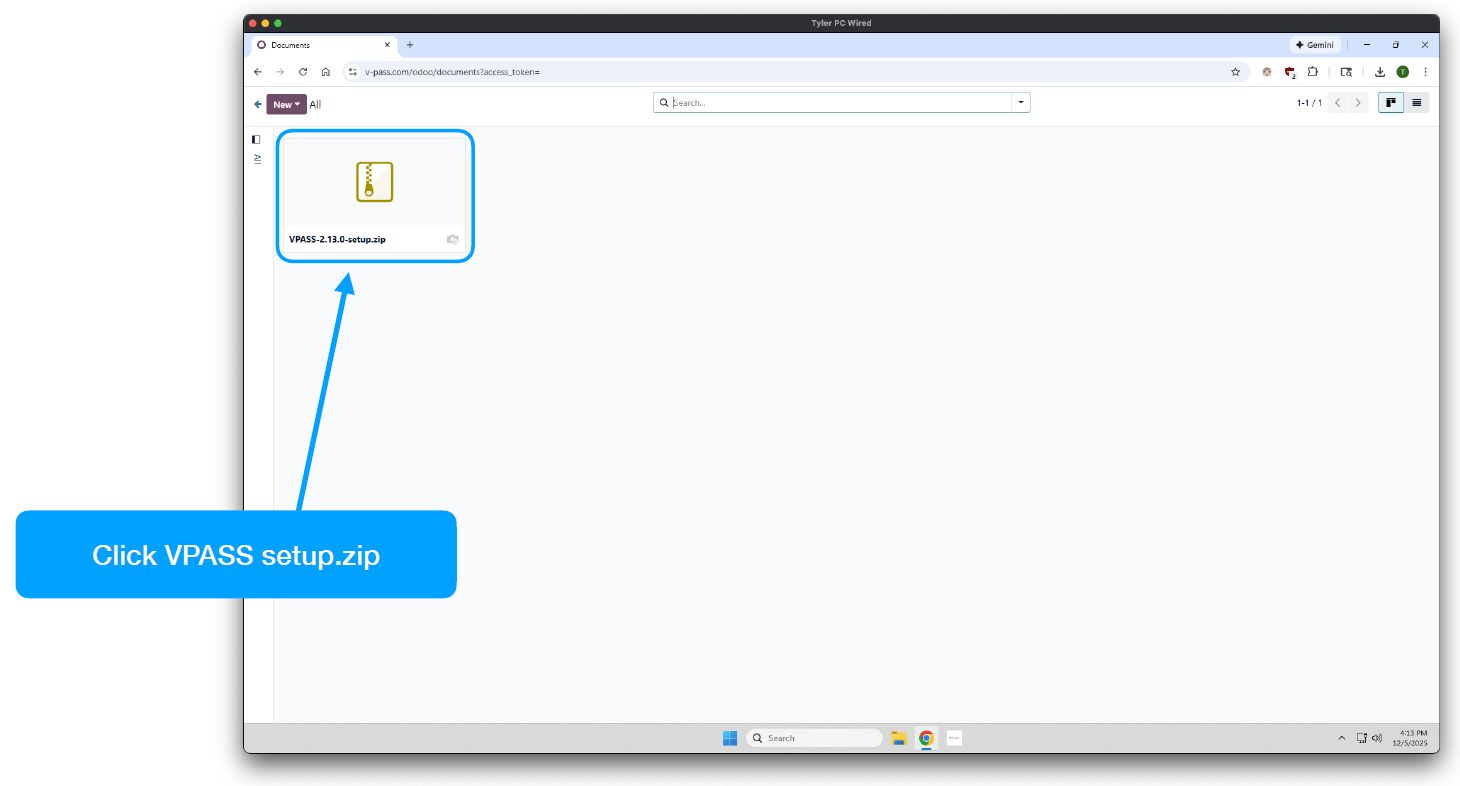
Step 4
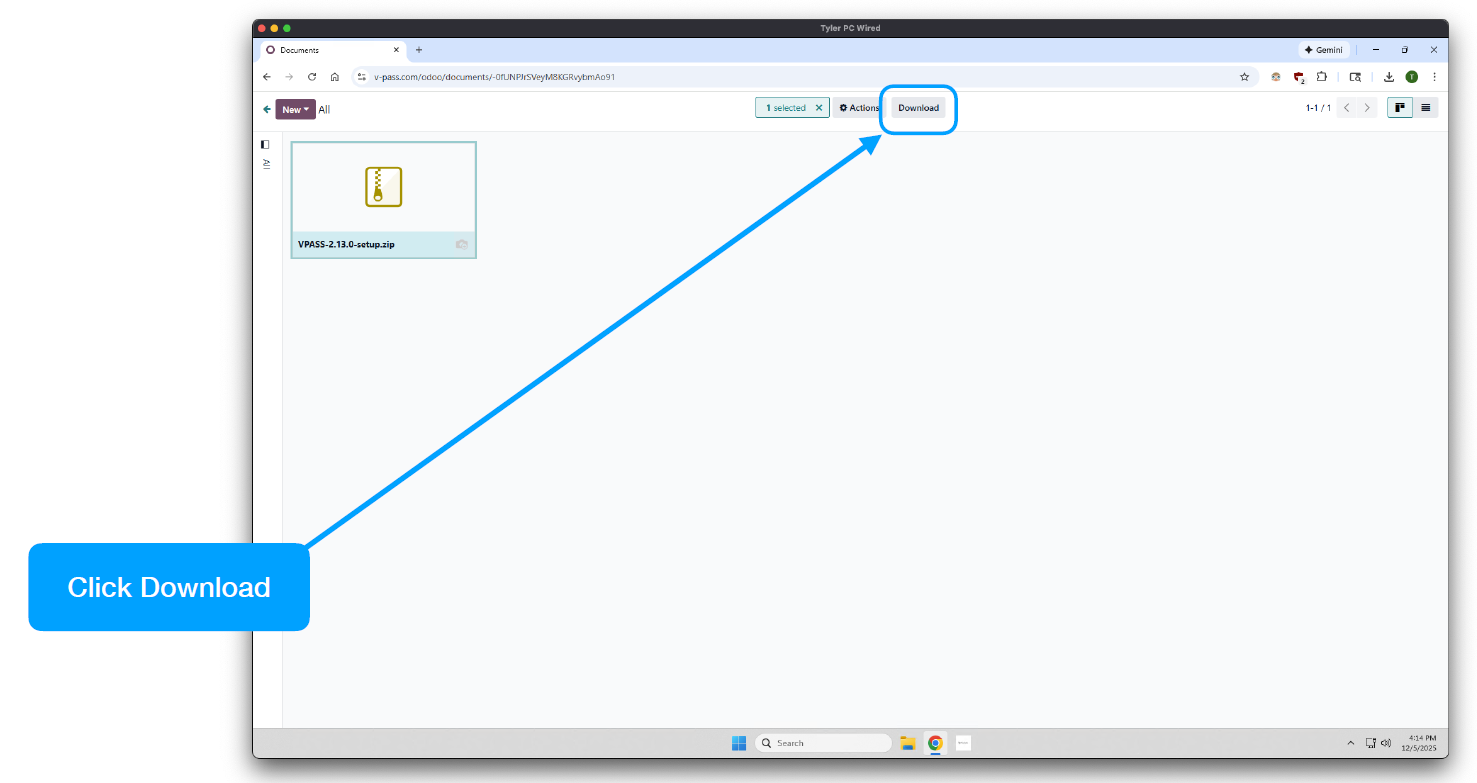
Step 5
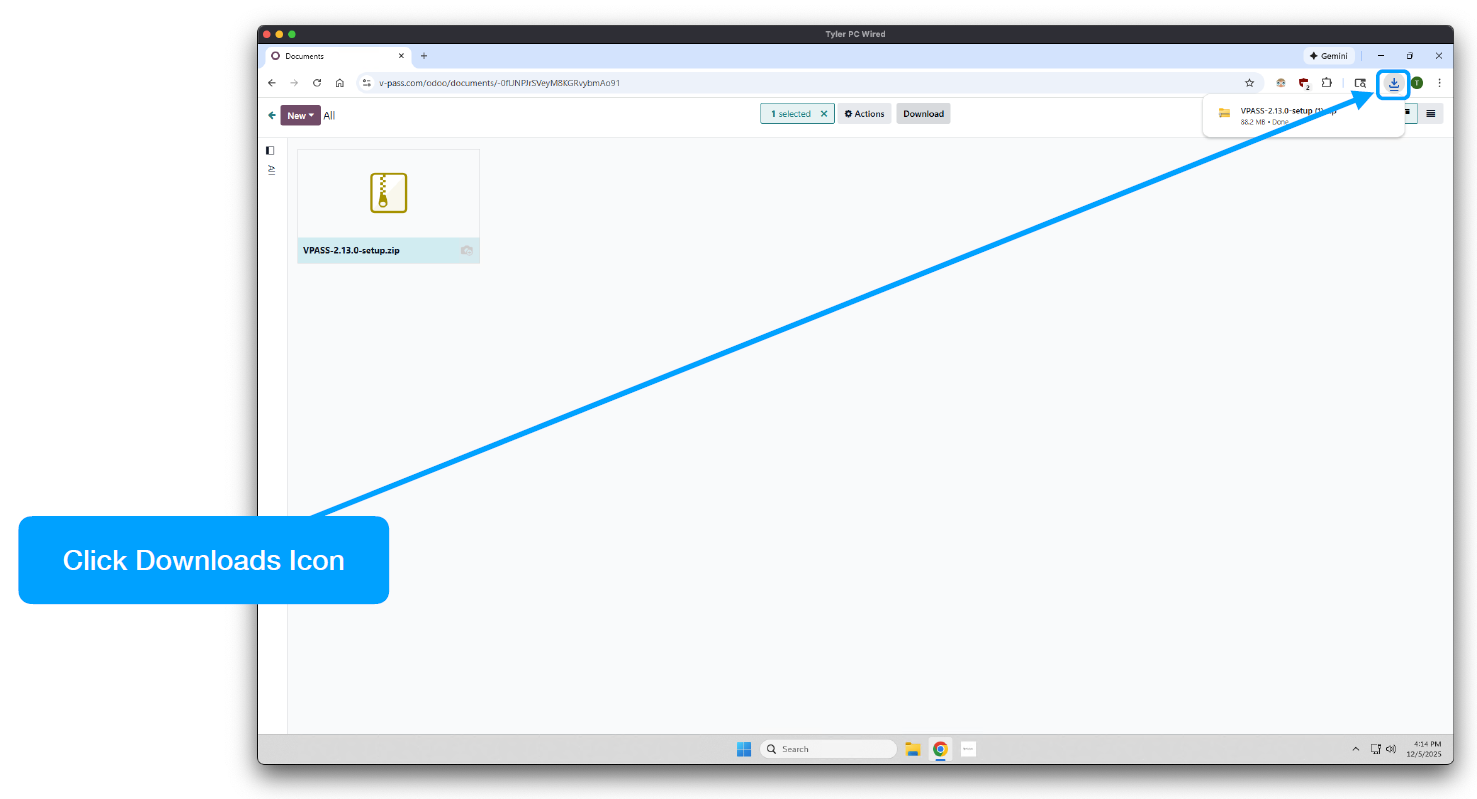
Step 6
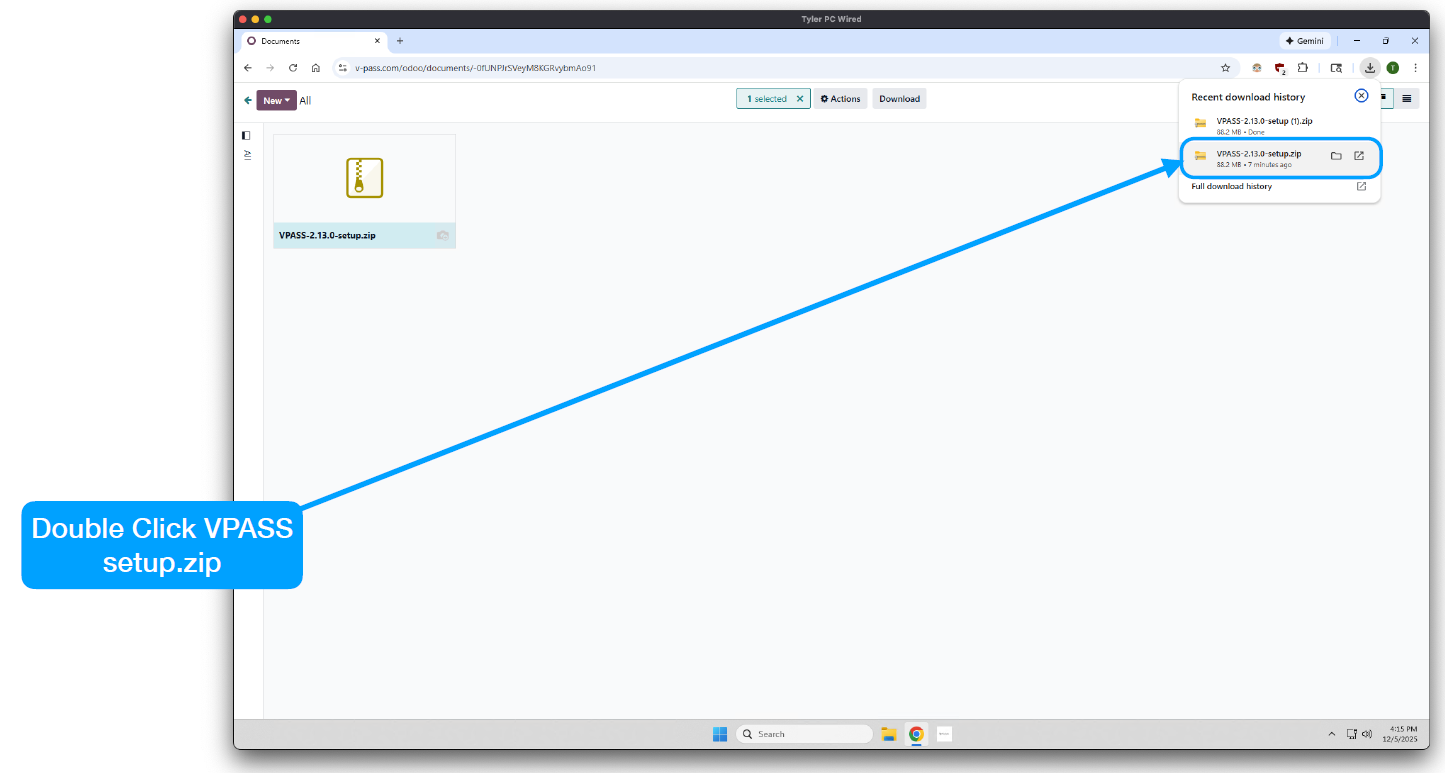
Step 7
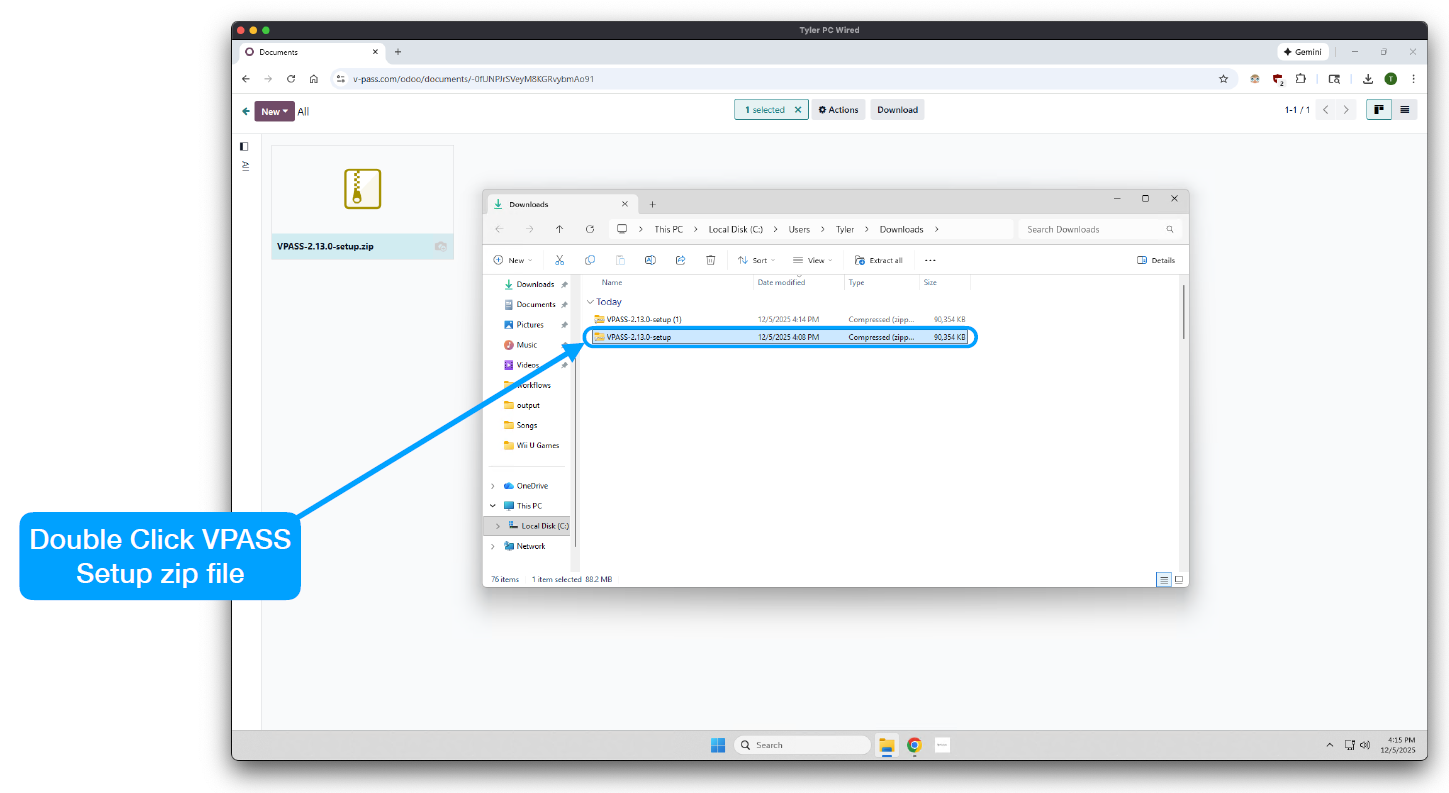
NOTE: Depending on the machine's configuration, you may be presented with a screen titled "Windows protected your PC". If you see this screen, click "More info", and then "Run anyway" before proceeding to step 8.
Step 8
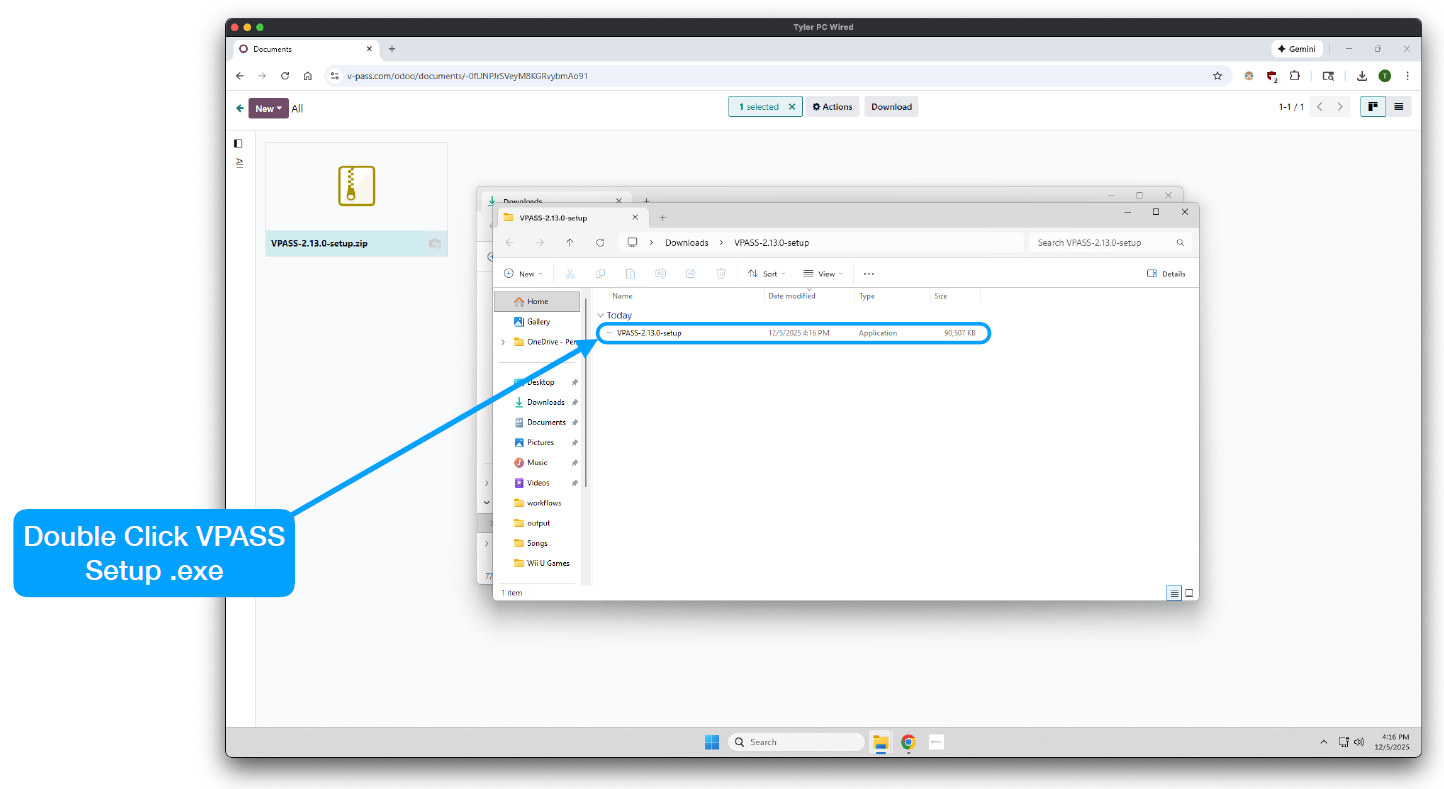
Step 9
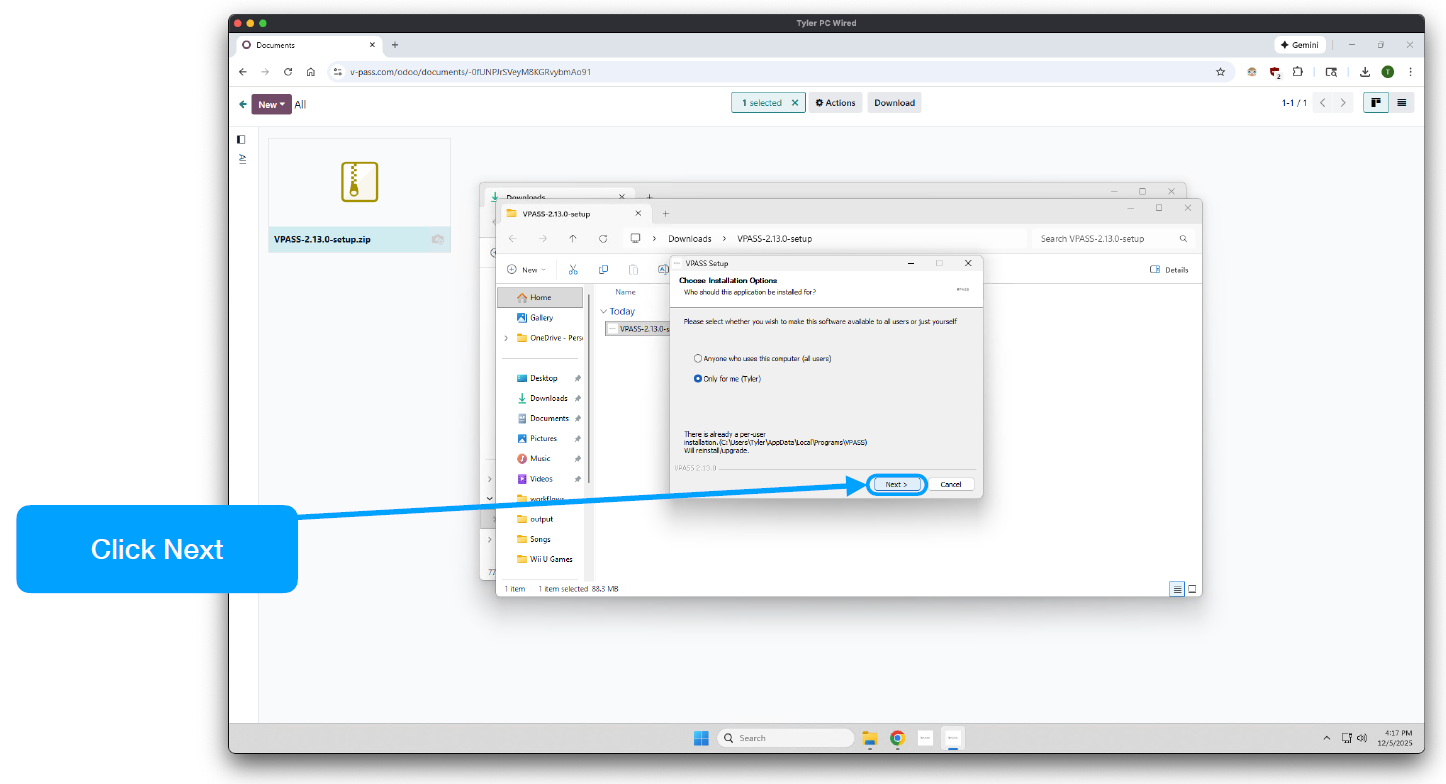
Step 10
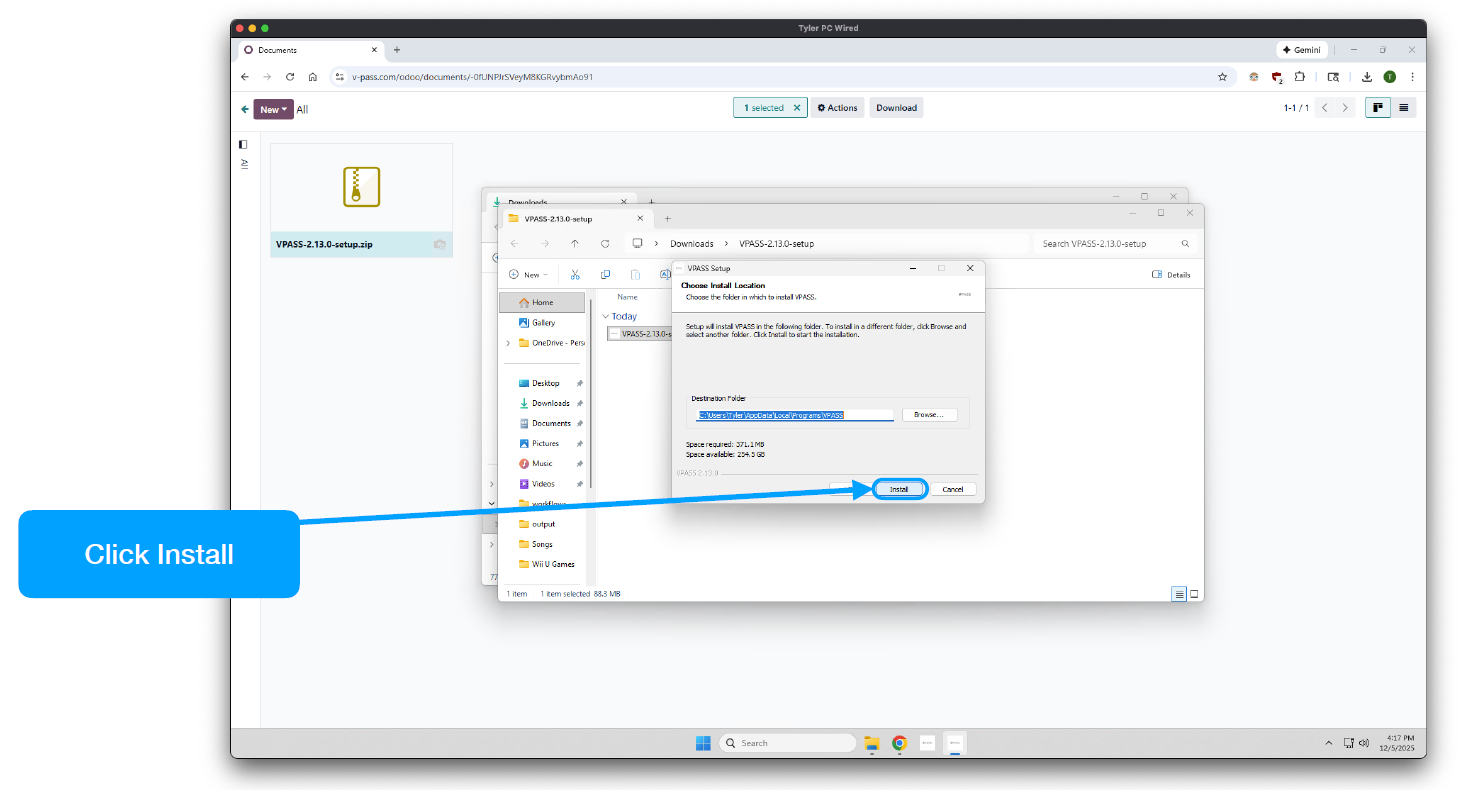
Step 11
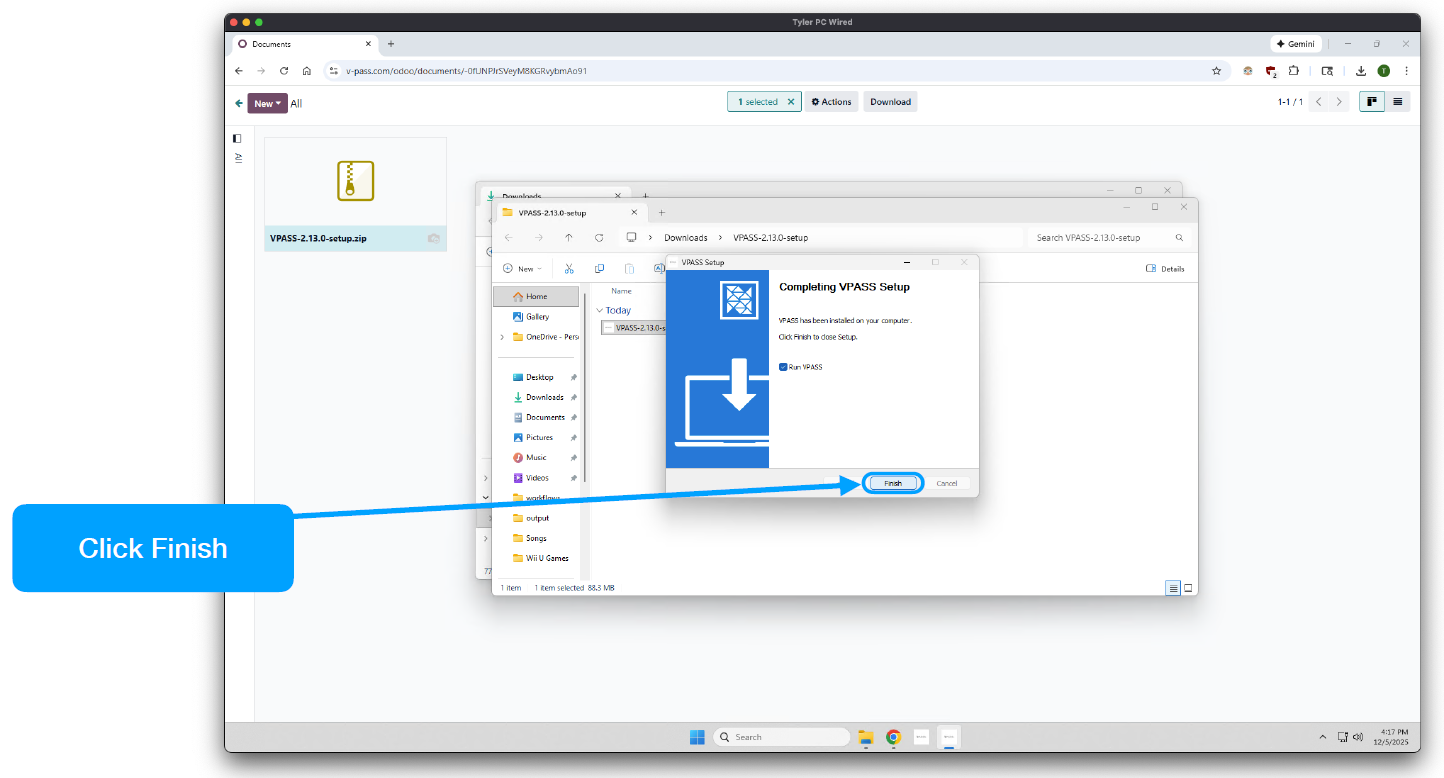
Step 12